collab.spaceDocumentation

Access Control

Control who can view and edit your documents with granular permissions.

The Documents app provides granular control over who can view and edit documents, with support for permission inheritance through folders.

Visibility Modes

ModeDescription
PrivateOnly the owner can access
CustomShared with specific people, teams, or organizations
InheritUses the same permissions as the parent folder

Permission Levels

When sharing with Custom visibility:

LevelCapabilities
OwnerFull control including sharing, deletion, and version management
EditorCan view, edit content, and save versions
ViewerRead-only access to view content and versions

Changing Document Visibility

  1. Open the document in the editor
  2. Click the access control button in the right panel (Properties tab)
  3. Choose the desired visibility mode
  4. For Custom visibility, select who should have access
  5. Save your changes

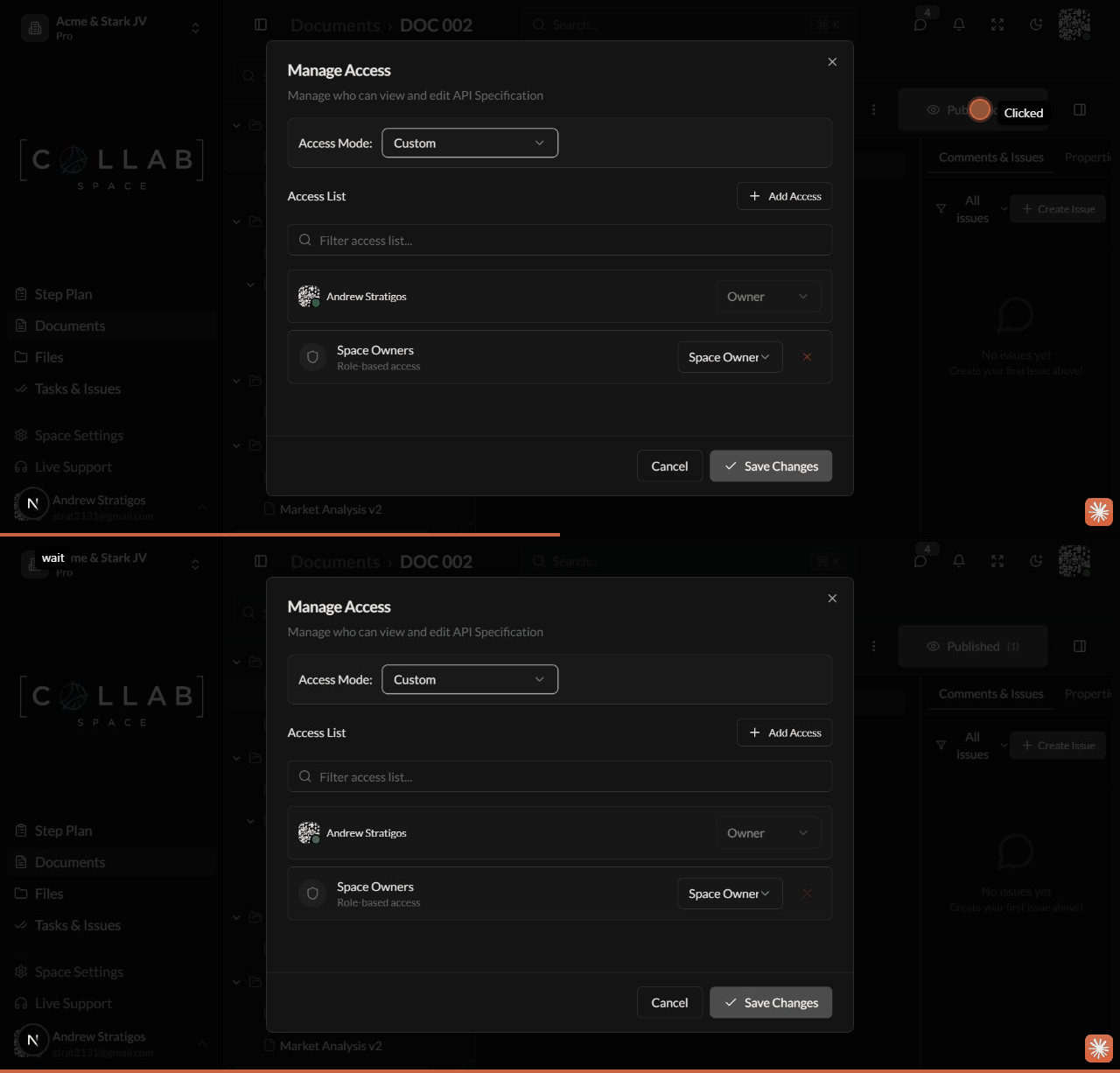
Access Control Modal

Sharing Documents

To share a document with specific users:

  1. Open the document
  2. Click the Share button or access control icon
  3. Click Add People, Teams, or Organizations
  4. Search and select recipients
  5. Set the appropriate access level for each
  6. Click Save

Subject Types

You can grant access to:

SubjectDescription
MemberIndividual workspace member
TeamAll members of a specific team
OrganizationAll members of an organization

Folder Permission Inheritance

Documents inside folders can inherit permissions from their parent:

How Inheritance Works

  1. Set visibility on a folder to control all contents
  2. Child documents with "Inherit" visibility automatically follow parent permissions
  3. Override inheritance by setting explicit visibility on individual documents

Setting Up Inherited Access

  1. Create or select a folder
  2. Set the folder's visibility to Custom
  3. Add the desired members, teams, or organizations
  4. Create documents inside with "Inherit" visibility

New documents created inside the folder will use Inherit mode by default.

Permission Actions

Different actions require different permission levels:

ActionRequired Level
View documentViewer or higher
Edit contentEditor or higher
Save versionsEditor or higher
Share with othersOwner only
Change visibilityOwner only
Delete documentOwner only
Move documentEditor or higher
Rename documentEditor or higher

Best Practices

  • Use folder-level permissions for consistent access control across related documents
  • Set sensitive documents to Private by default
  • Use teams and organizations for group sharing instead of individual members
  • Review access periodically to maintain security
  • Use Inherit mode for documents that should follow folder permissions
  • Grant minimal access - give users only the permissions they need

Checking Effective Permissions

To see who has access to a document:

  1. Open the document
  2. Go to the Properties tab
  3. View the Access Control section
  4. See all members, teams, and organizations with access
  5. Check effective permissions if using inheritance

Next Steps