


Previous
WorkflowsNext
Roles & PermissionsStay informed about important updates across your workspace with intelligent notifications.
The notification system keeps you up-to-date on activities that matter most to you, from mentions and assignments to status changes and meeting updates. With flexible preferences and smart defaults, you can customize how and when you receive notifications to match your workflow.
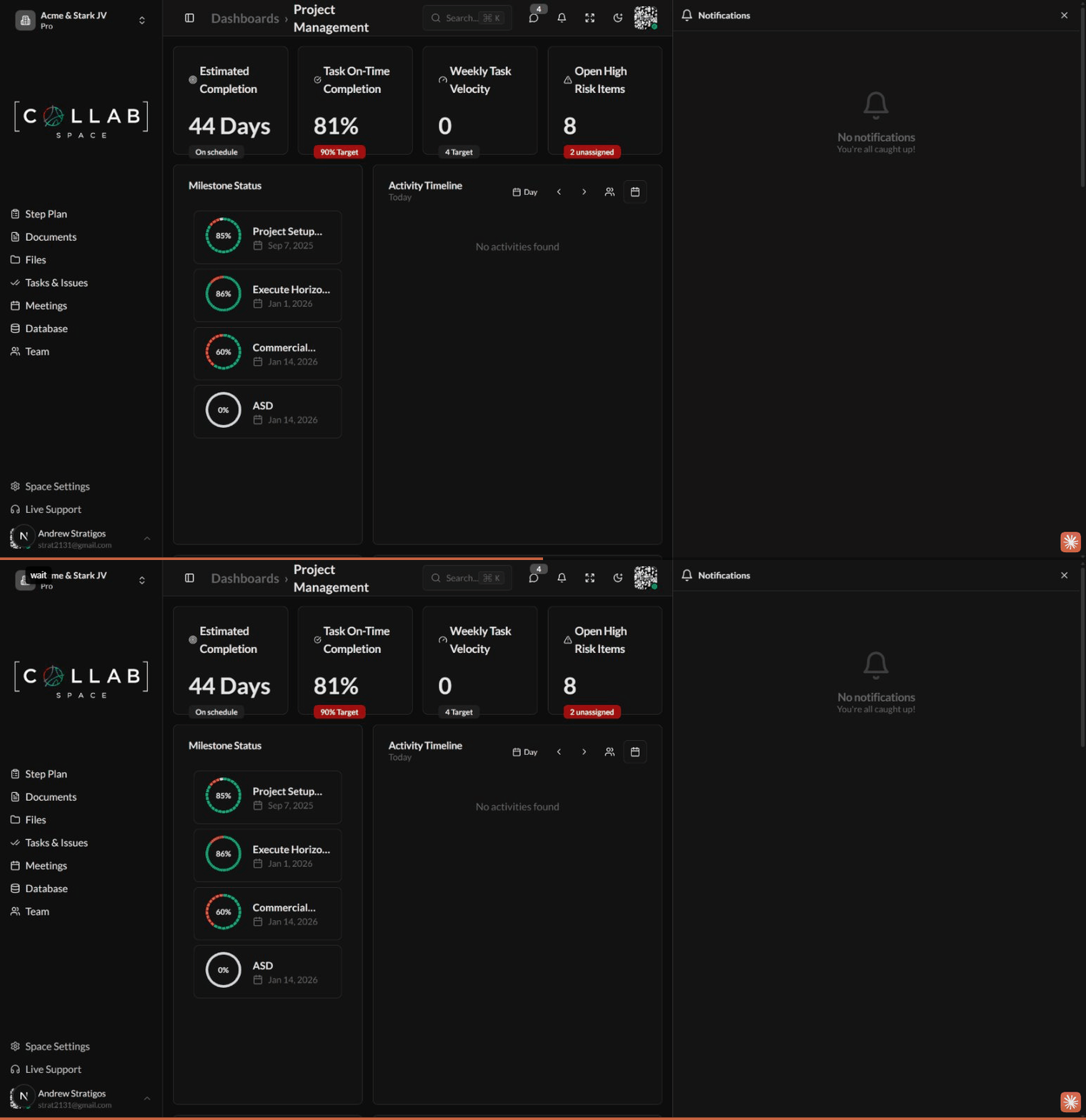
To access your notifications, click the bell icon in the header or navigate to your notification preferences in Settings > Notifications.
The system generates notifications for different types of activities across your workspace:
| Type | Description | Default Behavior |
|---|---|---|
| Assigned | You were assigned to an issue, meeting, or document | Email + Browser |
| Mentioned | Someone mentioned you in a comment or description | Email + Browser |
| Created | A new item was created that you're subscribed to | Email + Browser |
| Status Changed | An item's status was updated | Email + Browser |
| Priority Changed | An item's priority level was modified | Email + Browser |
| Due Date Updated | A deadline was added or changed | Email + Browser |
| Commented | Someone added a comment to an item you follow | Browser + Digest |
| Rescheduled | A meeting time was changed | Email + Browser |
| Participant Added/Removed | Meeting participants were modified | Browser + Digest |
| Approval Workflow | Approvers added, approvals received or rejected | Email + Browser |
| Tags Updated | Tags were added or removed from an item | Browser + Digest |
Notifications are organized into categories that you can configure independently:
| Category | Includes |
|---|---|
| Issues | Tasks, risks, assets, and decisions |
| Meetings | Scheduled meetings and participant changes |
| Documents | Document updates, comments, and sharing |
| Files | File uploads, modifications, and access changes |
| Milestones | Milestone plan updates and progress tracking |
You can receive notifications through multiple channels:
| Channel | Description |
|---|---|
| Browser | In-app notifications shown in the notification panel |
| Individual email alerts for important activities | |
| Digest | Batched email summaries sent at scheduled times |
The digest feature batches lower-priority notifications and sends them at scheduled times instead of immediately. This reduces inbox clutter while keeping you informed. Default digest times are:
You can customize digest times in your notification preferences.
Access your notifications by clicking the bell icon in the header. The notification panel shows:
| State | Description |
|---|---|
| Unread | New notification, highlighted in the list |
| Read | Notification has been viewed |
| Dismissed | Notification has been archived (hidden from list) |
Configure your notification preferences at two levels:
Set default preferences that apply across all your workspaces:
Override your global preferences for specific workspaces:
Each notification category supports three configuration schemes:
| Scheme | Description |
|---|---|
| Off | All notifications disabled for this category |
| Default | Use smart defaults based on activity importance |
| Custom | Configure individual activity types |
When using the Custom scheme, you can configure each activity type independently:
The notification system uses intelligent defaults based on activity importance:
Start with defaults - The smart defaults are designed to balance staying informed with avoiding notification fatigue
Use digest for routine updates - Enable digest for categories where you want to stay informed but don't need immediate alerts
Leverage space-level settings - Configure different preferences for different workspaces based on your involvement level
Disable channels temporarily - Use the global channel toggles to quickly mute all email or browser notifications when focusing
Subscribe selectively - You'll receive notifications for items where you're: