


Previous
ChatNext
Live SupportFind anything in your workspace instantly with powerful global search.
The Search feature provides quick access to all your content across issues, meetings, documents, files, and database entries. Using a combination of text matching and AI-powered semantic search, you can find exactly what you need even if you don't remember the exact words.
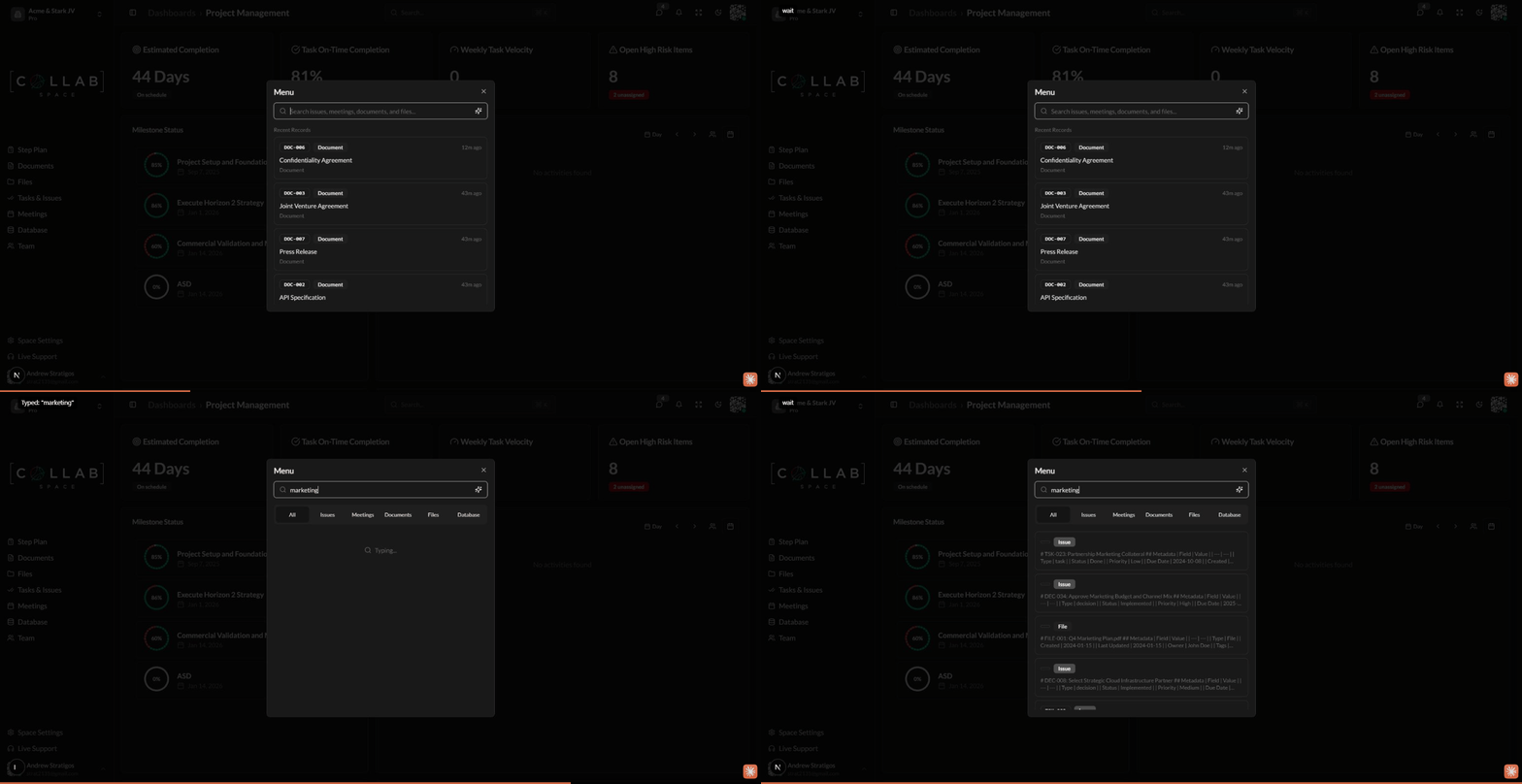
To open Search, press Cmd+K (Mac) or Ctrl+K (Windows/Linux), or click the search button in the header. You can also press / when not in a text field.
The search system uses two complementary approaches to find your content:
| Search Type | How It Works | Best For |
|---|---|---|
| Text Search | Matches exact words and phrases | Finding specific IDs, names, or keywords |
| Semantic Search | AI understands meaning and context | Finding related content, similar concepts |
| Hybrid Search | Combines both for best results | General searching (default mode) |
When you search, results that match both text and semantic criteria are boosted to appear higher in the results.
The command palette is your central hub for searching and navigating your workspace.
| Method | Action |
|---|---|
| Keyboard shortcut | Press Cmd+K (Mac) or Ctrl+K (Windows/Linux) |
| Slash key | Press / when not typing in a field |
| Header button | Click the search button showing "Search" |
When you open the command palette, you'll see:
Recent Records - Your recently viewed items appear automatically, making it easy to return to what you were working on.
Search Input - Start typing to search across all content. Results appear as you type with a brief delay for optimal performance.
Filter Tabs - After entering a search query, filter tabs appear to narrow results by type.
When searching, you can filter by content type using the toggle buttons:
| Filter | Content Searched |
|---|---|
| All | Issues, meetings, documents, files, database entries |
| Issues | Tasks, risks, assets, and decisions |
| Meetings | All meeting records and transcripts |
| Documents | Document titles and content |
| Files | File names and metadata |
| Database | Database entries (when module is enabled) |
Select a filter to show only that type of content in your results.
Each search result displays:
Click any result to navigate directly to that item.
Results are ranked by relevance using these factors:
Toggle AI mode to start an AI conversation instead of searching.
Cmd+K| Feature | Description |
|---|---|
| Text Questions | Ask questions about your workspace |
| File Attachments | Click the paperclip to attach files for AI analysis |
| Context Aware | AI has access to your workspace data and context |
When you press Enter in AI mode, a new AI conversation opens in the chat panel.
Semantic search uses AI embeddings to understand the meaning behind your query, not just the words.
| Capability | Example |
|---|---|
| Synonym matching | "budget" finds "financial plan", "costs", "expenses" |
| Concept matching | "team communication" finds chat channels, meetings, updates |
| Context understanding | "Q1 goals" finds relevant milestones and tasks |
Semantic search requires the vectorSearch capability in your workspace subscription. Without it, search gracefully falls back to text-only matching.
The search index includes content from these record types:
| Record Type | Indexed Content |
|---|---|
| Issues | Title, description, type, status, comments |
| Meetings | Title, description, transcript, notes |
| Documents | Title, full document content |
| Files | File name, type, metadata |
| Milestone Plans | Name, description, milestone details |
| Database Entries | All field values and descriptions |
Content is automatically indexed when created or updated, keeping search results current.
Search results respect your workspace permissions:
You'll never see search results for content you're not authorized to access.
| Action | Shortcut |
|---|---|
| Open search | Cmd+K / Ctrl+K |
| Open search (alternate) | / |
| Close search | Esc |
| Navigate results | Arrow Up / Arrow Down |
| Select result | Enter |
| Toggle AI mode | Click sparkle icon |
| Start AI conversation | Enter (in AI mode) |
Include unique identifiers or specific phrases when you know them:
If text search doesn't find what you need, try describing what you're looking for:
Narrow results with type filters when you know what you're looking for:
Your recently viewed items appear when you open search with no query - often the item you need is right there.
Why don't I see semantic search results? Semantic search requires the vectorSearch capability. Check your workspace subscription or contact your administrator.
How quickly is new content searchable? Content is indexed immediately when created or updated. New items are searchable within seconds.
Can I search within a specific date range? The command palette doesn't support date filters. Use the filter options within each app (Issues, Meetings, etc.) for date-based filtering.
Why are some results not appearing? Search respects access control. You only see results for content you have permission to view.
Does search work offline? No, search requires a connection to the server to query the index and retrieve results.