


Previous
Billing & SubscriptionNext
OverviewOrganize your workspace with a flexible hierarchy of organizations, teams, and members.
The Team app provides a comprehensive organizational structure for managing who has access to your workspace and what they can do. With a three-tier hierarchy (Organizations, Teams, Members), role-based access control, and intuitive drag-and-drop management, you can easily scale your workspace from small teams to enterprise organizations.
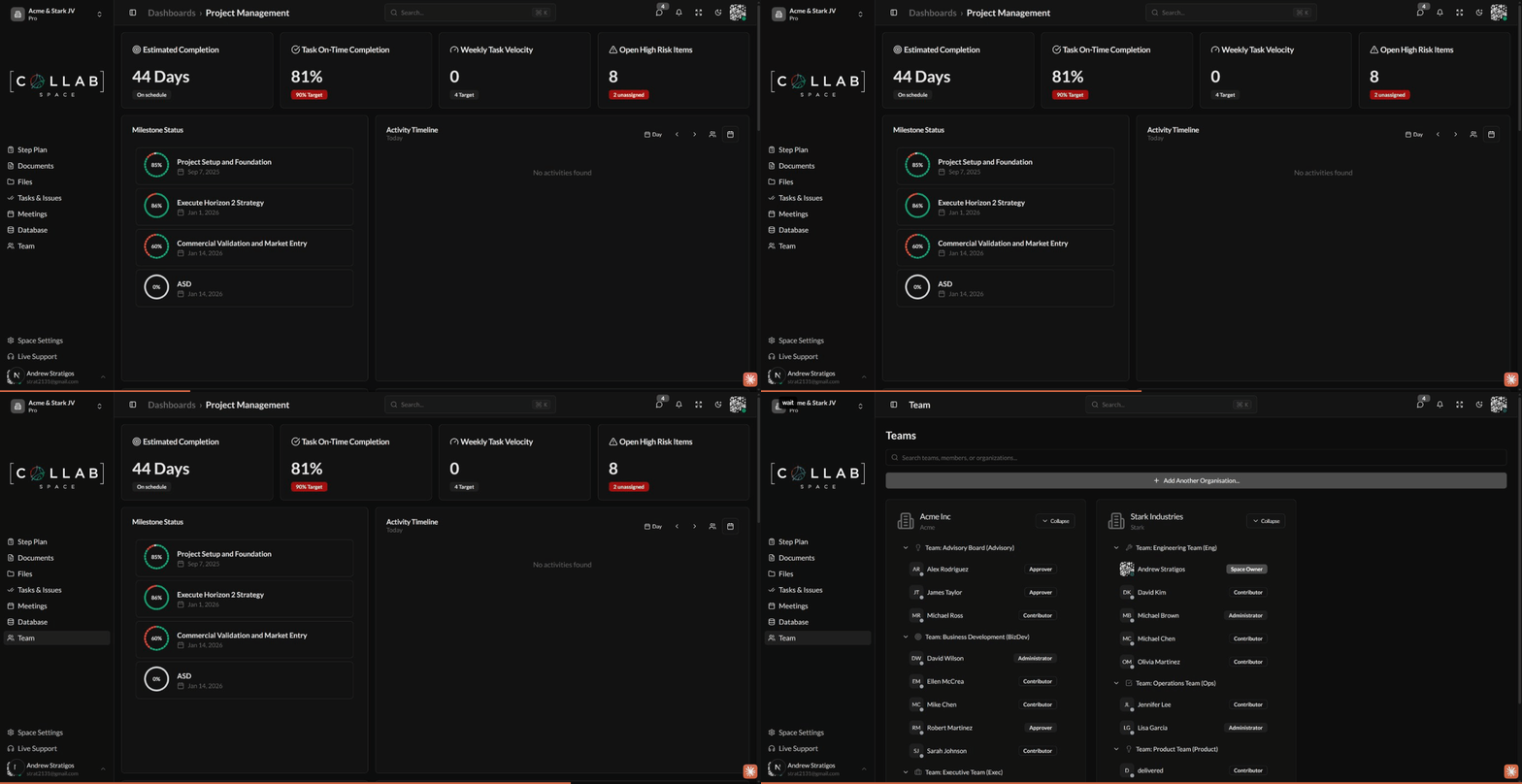
To access the Team app, navigate to Team in the sidebar or go to /apps/team in your workspace.
collab.space uses a three-tier organizational hierarchy:
| Level | Description | Contains |
|---|---|---|
| Organizations | Top-level groups (e.g., departments, clients, divisions) | Multiple teams |
| Teams | Working groups within an organization | Multiple members |
| Members | Individual users assigned to teams | Roles and permissions |
Each member is assigned a role that determines what they can do in the workspace:
| Role | Description | Key Permissions |
|---|---|---|
| Space Owner | Full ownership of the workspace | All permissions including archive and delete |
| Administrator | Manage workspace settings and users | All features except archive/delete space |
| Contributor | Create and edit content | Create, update, and comment on items |
| Approver | Review and approve items | View all items, publish documents |
| View Only | Read-only access | View items only, no editing |
| Disabled | No access to the workspace | No permissions |
Roles control access to different resources in the workspace:
| Role | Documents | Files | Issues | Meetings | Milestones |
|---|---|---|---|---|---|
| Space Owner | Full | Full | Full | Full | Full |
| Administrator | Full | Full | Full | Full | Full |
| Contributor | Create/Edit | Create/Edit | Create/Edit | Create/Edit | Create/Edit |
| Approver | View/Publish | View | View | View | View |
| View Only | View | View | View | View | View |
| Disabled | None | None | None | None | None |
New users receive an email with a one-time password (OTP) to verify their account and join the workspace.
By default, members inherit the team's default role. You can override this for individual members:
Members with role overrides display a secondary badge style to indicate the override.
Removed members lose access to the workspace immediately. To regain access, they must be invited again.
The member's role is preserved during transfer.
Access team settings by clicking the settings button (gear icon) on a team:
Settings Tab:
Manage Tab:
A default "Administrators" team is automatically created within new organizations.
Click the settings button on an organization to:
collab.space uses a two-tier authorization system:
A user can only perform an action if they have both:
| Scope | Description | Example |
|---|---|---|
| Space | Applies to the entire workspace | Create new issues |
| Record | Applies to specific items | Edit a particular document |
| Permission | Space Owner | Administrator | Contributor | Others |
|---|---|---|---|---|
| Update Settings | Yes | Yes | No | No |
| Invite Members | Yes | Yes | No | No |
| Remove Members | Yes | Yes | No | No |
| Manage Teams | Yes | Yes | Yes | No |
| Manage Organizations | Yes | Yes | No | No |
| Archive Space | Yes | No | No | No |
| Delete Space | Yes | No | No | No |
The Team app includes a real-time search that filters across:
Search preserves the hierarchical structure, showing parent organizations and teams for matching members.
Structure your organizations by department, client, or project to reflect how your team actually works:
Configure each team with an appropriate default role to minimize manual role assignment:
Rely on team default roles when possible. Use individual overrides only when a member needs different permissions than their teammates.
Periodically review:
The workspace tracks billable users based on their role capabilities:
View the current billable user count in the Team app footer.