


Previous
Global SearchNext
WorkflowsSubmit support requests and get help from the collab.space team.
The Live Support app provides a direct channel to reach our support team. Whether you're experiencing technical issues, have billing questions, need help with your account, or want to request new features, you can create a support case and track its progress right within the application.
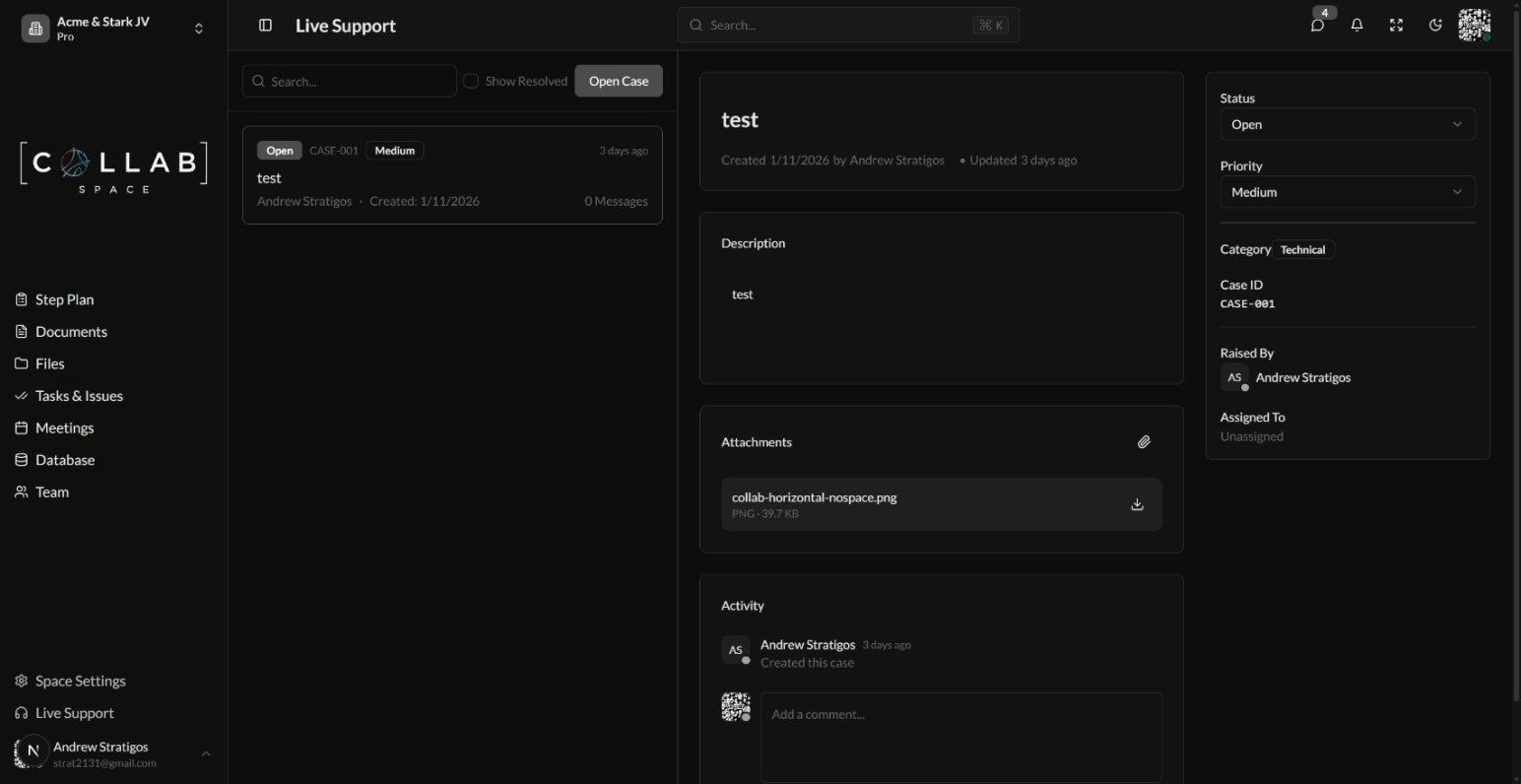
To access Live Support, click Live Support in the sidebar or navigate to /apps/live-support in your workspace.
To get help from our support team:
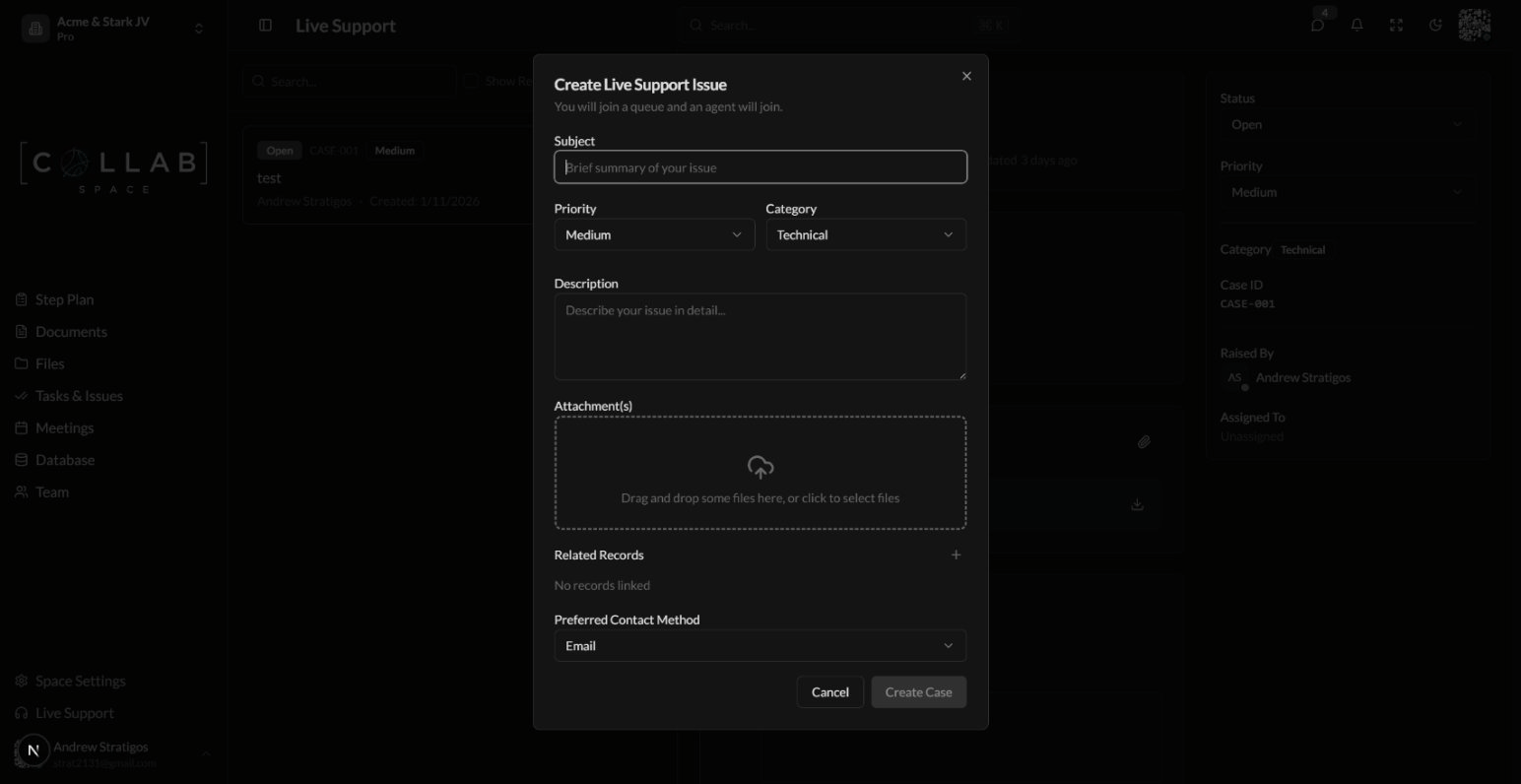
Once submitted, our support team receives an email notification and will respond as soon as possible.
Help us help you faster by selecting an appropriate priority:
| Priority | When to Use |
|---|---|
| Low | General questions, minor inconveniences, feature suggestions |
| Medium | Issues affecting your normal workflow |
| High | Significant problems blocking important work |
| Critical | Urgent issues - system down, data loss risk, or security concerns |
Choose the category that best describes your request so we can route it to the right team:
| Category | Examples |
|---|---|
| Technical | Software bugs, error messages, performance issues, integration problems |
| Billing | Payment questions, subscription changes, invoice inquiries |
| Account | Login problems, permission issues, user access, account settings |
| Feature Request | New feature suggestions, improvement ideas, enhancement requests |
| Other | Anything that doesn't fit the above |
The left panel shows all your support cases with key information at a glance:
Use the Search box to find specific cases by subject, case ID, or date.
Toggle Show Resolved to view cases that have been completed.
Your case will progress through these stages:
| Status | What It Means |
|---|---|
| Open | We've received your request and it's in our queue |
| In Progress | A support agent is actively working on your case |
| Awaiting Customer | We need more information from you - please check the latest message |
| Resolved | Your issue has been addressed - let us know if you need anything else |
| Closed | Case is complete and archived |
Click on any case to see:
If our team asks for more details or you have updates to share:
Your message will be added to the case and our team will be notified.
To add more files to your case:
Supported files include screenshots, documents, PDFs, spreadsheets, and more.
When creating a case, you can specify how you'd prefer us to contact you:
| Method | Description |
|---|---|
| We'll respond via email (default) | |
| Chat | Get help through in-app chat |
| Mobile | Receive a phone call |
| Schedule Callback | Request a call at a specific time |
| Video Call | Meet with support via video |
Available methods depend on your subscription plan.
A good subject helps us understand and prioritize your request:
Include:
A picture is worth a thousand words. Screenshots help us see exactly what you're experiencing and often speed up resolution significantly.
If your issue involves a specific document, file, issue, or meeting in your workspace, link it to your case using the Related Records section. This gives our team immediate context.
Reserve "Critical" for true emergencies. Accurately prioritizing helps us address the most urgent issues first and ensures everyone gets timely support.
Response times vary based on priority and our current volume. Critical issues are addressed immediately during business hours. Most cases receive an initial response within 24 hours.
Yes. You can edit the subject and description, add comments, and upload additional attachments at any time.
Great! The support team will mark your case as "Resolved." If the issue returns or wasn't fully addressed, simply add a comment and we'll reopen it.
Support cases are visible within your workspace. Team members can view cases to avoid duplicate submissions and stay informed about ongoing issues.