


Previous
AI WorkflowsNext
Global SearchCommunicate instantly with your team through real-time messaging.
The Chat application provides seamless team communication with direct messages, group channels, and AI-powered conversations. Access it from any page by clicking the chat icon in the header to stay connected without leaving your current workflow.
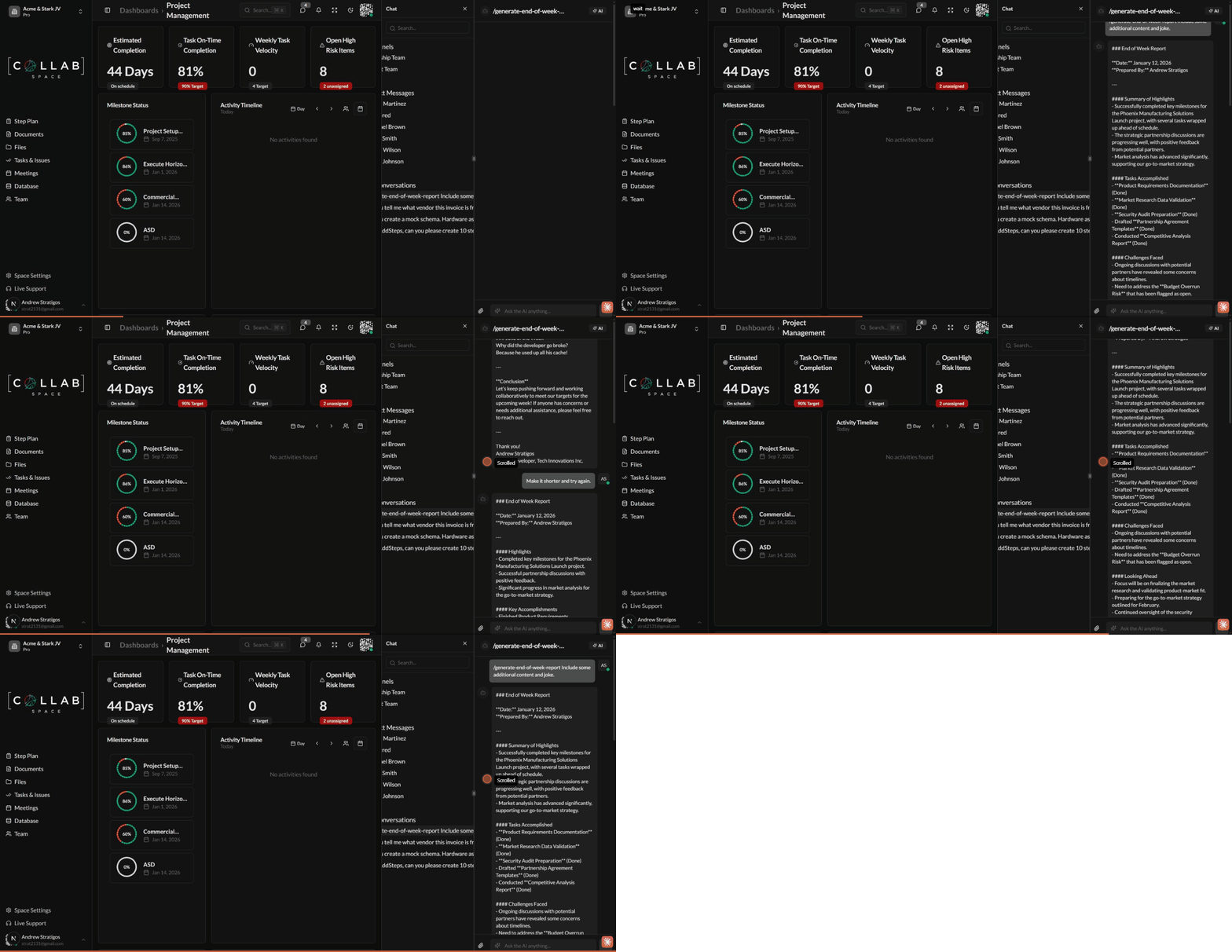
To open the Chat panel, click the chat icon in the top-right header. A badge shows your unread message count.
The Chat panel slides out from the right side of your screen, keeping your main workspace visible. It's divided into two sections:
Conversation List (Left Side)
Message View (Right Side)
Channels are group conversations that keep your team aligned on specific topics, projects, or departments.
You automatically become the channel owner when you create it.
| Role | Capabilities |
|---|---|
| Owner | Full control - add/remove members, change roles, delete channel |
| Member | Send messages, view history, search messages |
Direct messages (DMs) are private conversations between you and one other team member.
DM conversations are always private and cannot include additional participants.
Click the action menu (three dots) on any message you sent to:
| Action | Description |
|---|---|
| Edit | Modify your message text (shows "edited" indicator) |
| Delete | Remove the message (shows "deleted" placeholder) |
You can only edit or delete your own messages.
The chat supports sharing files and images within conversations:
Find past conversations quickly using the built-in search.
Use the search field at the top of the conversation list to filter conversations by name.
Mute conversations to stop receiving notifications without leaving:
Archive old conversations to keep your list organized:
The Chat application automatically tracks message status:
| Status | Meaning |
|---|---|
| Sent | Message delivered to the server |
| Delivered | Message received by participants |
| Read | Message viewed by recipients |
Messages are marked as read when they become visible in your chat window. The unread count badge updates automatically as you view messages.
The AI Conversations section in the chat panel shows your history with the workspace AI assistant. For the full AI experience — including commands, automations, model selection, and file attachments — use the dedicated Operator app from the sidebar.
From the chat panel, AI conversations can help you:
See AI Assistant and Commands & Skills for more details.
Huddles let you start instant audio or video calls directly from any conversation without scheduling a meeting. Perfect for quick discussions that would take too long to type out.
| Control | Description |
|---|---|
| Mute/Unmute | Toggle your microphone on or off |
| Camera | Turn video on or off |
| Screen Share | Share your screen with participants |
| Leave | Exit the huddle |
| Feature | Huddles | Meetings |
|---|---|---|
| Scheduling | Instant, no scheduling | Scheduled with invites |
| Duration | Casual, typically short | Structured, any length |
| Recording | Not recorded | Can be recorded |
| Best for | Quick syncs, clarifications | Formal discussions, presentations |
Huddles are available on Pro, Business, and Enterprise plans.
Create channels for specific purposes rather than using direct messages for group discussions:
Choose clear, searchable names that help team members find the right channel quickly.
Use the appropriate channel for each topic. This makes searching easier and keeps discussions organized.
The badge count in the header shows total unread messages. Click through conversations to stay current with team discussions.
| Action | Shortcut |
|---|---|
| Send Message | Enter |
| New Line in Message | Shift + Enter |
| Close Chat Panel | Click outside or press Esc |
Can I delete a channel? Only channel owners can delete channels. Use the action menu in the channel header.
How do I leave a channel? Open the channel members modal and remove yourself from the participant list.
Are my direct messages private? Yes, DMs are only visible to you and the other person in the conversation.
Can I search across all conversations? Currently, message search works within individual conversations. Use the conversation list filter to find specific channels or DMs by name.
How long are messages stored? Messages are stored permanently and can be accessed anytime through the conversation history.