


Previous
NotificationsNext
OverviewControl who can access and modify resources in your workspace with a powerful two-tier authorization system.
Collab.space uses a combination of role-based access control (RBAC) for workspace-wide permissions and Zanzibar-style record access rules for fine-grained resource sharing. This gives you complete control over who can do what in your workspace.
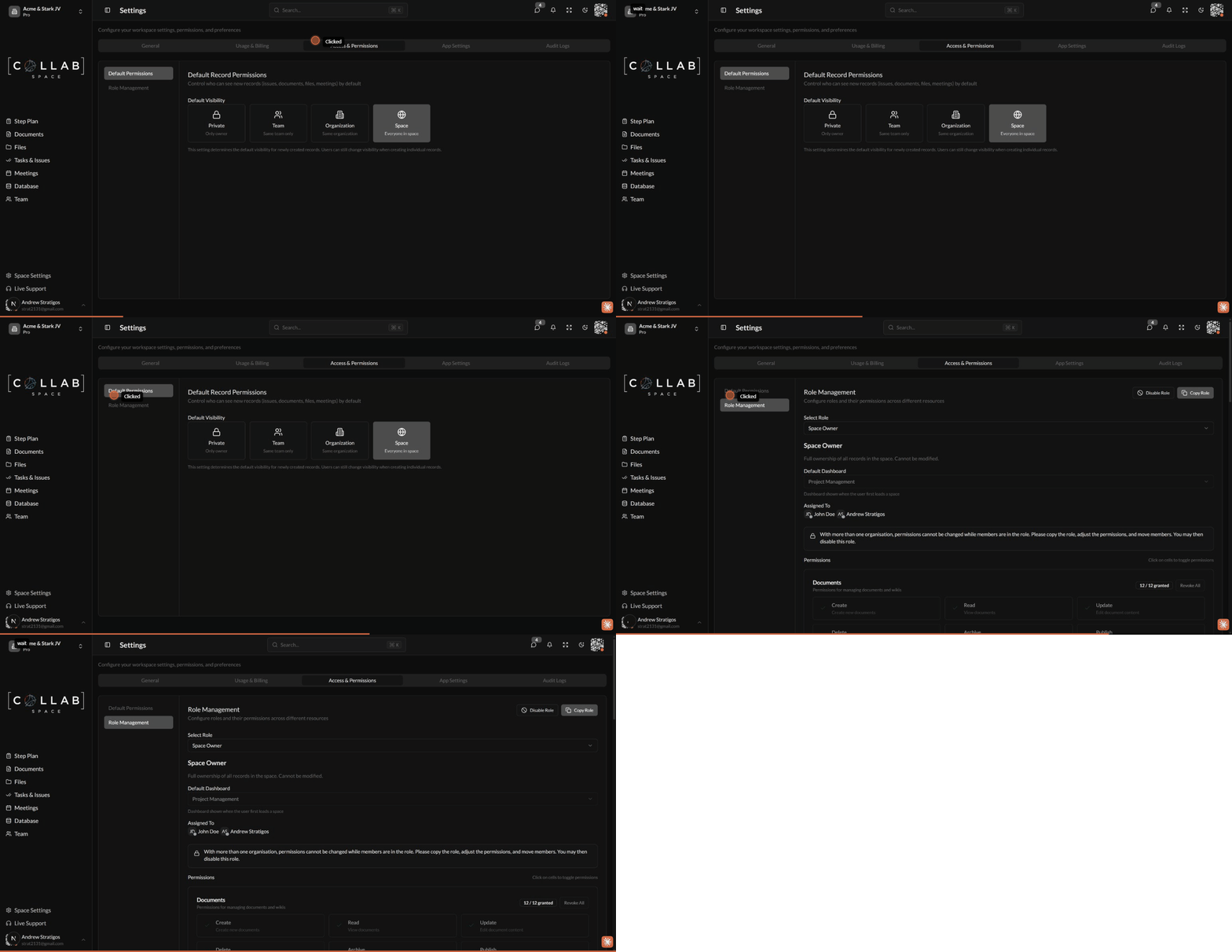
When a user tries to perform an action on a resource, the system checks two things:
Both conditions must be met for the action to be allowed.
Every member of a workspace is assigned a role that determines their baseline permissions across all resources.
| Role | Description | Key Capabilities |
|---|---|---|
| Space Owner | Full ownership of the workspace | All actions including archive/delete workspace |
| Administrator | Full feature access with management capabilities | All resource actions, invite/remove members, manage teams |
| Contributor | Can create and edit items | Create, read, update resources; manage teams |
| Approver | Review and approval only | Read resources, publish documents |
| View Only | Read-only access | View all resources, no editing |
| Disabled | No access | Cannot access workspace |
Each role has specific permissions for different resource types:
| Role | Documents | Files | Issues | Meetings | Milestones |
|---|---|---|---|---|---|
| Space Owner | Full | Full | Full | Full | Full |
| Administrator | Full | Full | Full | Full | Full |
| Contributor | Create, Edit, Comment | Create, Edit, Comment | Create, Edit, Assign | Create, Edit | Create, Edit |
| Approver | Read, Publish | Read | Read | Read | Read |
| View Only | Read | Read | Read | Read | Read |
Beyond roles, you can share individual resources with specific members, teams, or organizations.
When sharing a resource, you assign an access level that determines what the recipient can do:
| Level | Capabilities |
|---|---|
| Owner | Full control - edit, delete, share, manage permissions |
| Editor | Can modify the resource and add comments |
| Viewer | Read-only access to the resource |
You can share resources with:
Resources have three visibility modes that control their default access:
Only the owner can access the resource by default.
Access is controlled entirely by the explicit share list.
The resource inherits access permissions from its parent.
Share a resource with an entire team so all team members can collaborate:
All current and future team members will have access.
Allow everyone in an organization to view a resource while limiting edits:
Grant different access levels to different groups:
Resource: Q4 Planning Document

- Marketing Team: Editor (can make changes)
- Engineering Org: Viewer (can read only)
- Sarah Johnson: Owner (full control)
This is achieved by adding multiple share entries with different access levels.
When resources have parent-child relationships (like documents in folders or sub-issues), you can use inheritance to simplify permission management.
New resources default to private. Share them only with people who need access rather than making everything visible.
Instead of sharing with many individuals, create a team and share with the team. This makes access management easier when people join or leave.
Set appropriate roles for workspace members so they have reasonable default access. Use sharing for exceptions.
Periodically check who has access to sensitive resources and remove access for people who no longer need it.
Some actions apply to the workspace itself rather than individual resources:
| Action | Space Owner | Administrator | Contributor | Approver | View Only |
|---|---|---|---|---|---|
| Update Settings | Yes | Yes | No | No | No |
| Invite Members | Yes | Yes | No | No | No |
| Remove Members | Yes | Yes | No | No | No |
| Manage Teams | Yes | Yes | Yes | No | No |
| Manage Organizations | Yes | Yes | No | No | No |
| Archive Workspace | Yes | No | No | No | No |
| Delete Workspace | Yes | No | No | No | No |