


Previous
Roles & PermissionsNext
General SettingsSpaces are isolated workspaces that keep your teams, projects, and data organized and separate.
A Space in collab.space provides complete data isolation, meaning all your issues, meetings, documents, files, milestones, and team members are scoped to that specific workspace. This allows you to manage multiple projects, clients, or departments from a single account while keeping everything neatly organized.
💡 Best Practice: One Well-Architected Space
Many companies fall into a trap of eagerly creating spaces based on department. This is not the recommended approach within Collab. We encourage collaboration among users across different silos and promote the idea of benefit through diversity. Bringing multiple large streams together into the same space—aligned around a common objective—creates better outcomes.
When should you split into separate spaces?
- Different objectives — Within a single company this is rare, but in bilateral spaces (e.g., joint ventures) this is more common.
- Teams cannot know of each other's existence — While we have fine-grained access controls, sometimes you need complete isolation where teams don't even know the others exist (e.g., competing customers in the same workspace).
When in doubt, you're typically better off with one well-architected space.
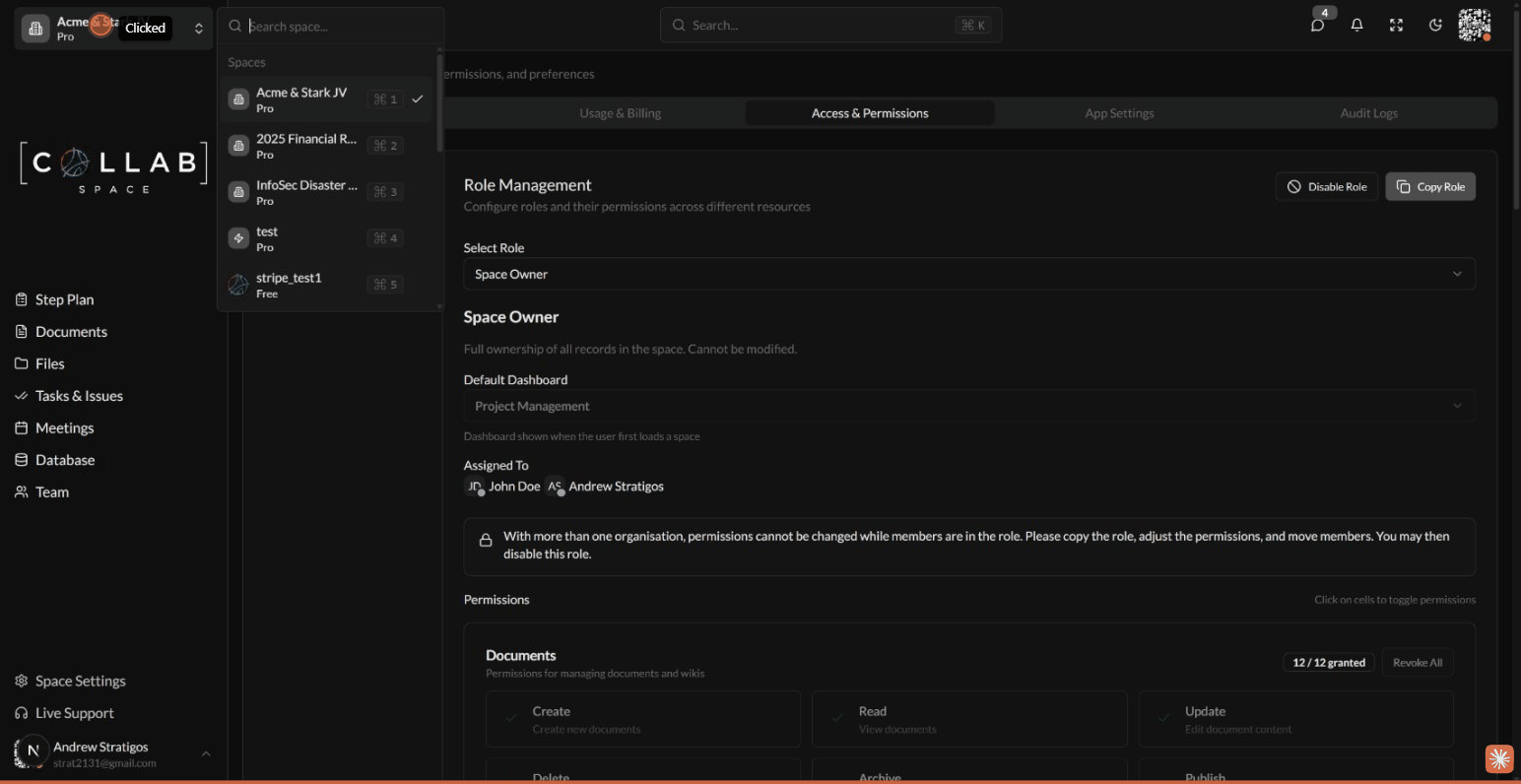
A Space is your dedicated workspace that contains:
| Feature | Description |
|---|---|
| Organizations | Top-level groupings for your team structure |
| Teams | Groups of members within organizations |
| Members | Individual users with role-based permissions |
| Issues | Tasks, risks, assets, and decisions |
| Meetings | Scheduled meetings with participants |
| Documents | Rich text documents with collaboration |
| Files | File storage with version control |
| Milestones | Project planning and progress tracking |
| Settings | Space-specific configurations and preferences |
Each Space has a unique URL code (e.g., acme-inc) that identifies it in the application URL structure.
All space-scoped pages follow this URL pattern:
https://app.collab.space/{spaceCode}/apps/{app-name}
For example:
/acme-inc/apps/issues - Issues app for the "Acme Inc" space/startup-co/dashboards/project - Project dashboard for "Startup Co" space/my-team/apps/meetings - Meetings app for "My Team" spaceThe space code is automatically generated from your space name when you create it. If a code collision occurs, a random suffix is added to ensure uniqueness.
To create a new space:
The wizard will automatically:
Spaces use a three-level hierarchy for organizing people:
| Level | Description | Example |
|---|---|---|
| Organization | Top-level grouping | "Engineering", "Marketing" |
| Team | Group within an organization | "Frontend Team", "Design Team" |
| Member | Individual user in a team | "[email protected]" |
Each member has a role that determines their permissions:
| Role | Description |
|---|---|
| Space Owner | Full ownership of all records. Cannot be modified. |
| Administrator | Full access to all features. Can manage the workspace but cannot archive or delete the space. |
| Contributor | Can create and edit items, and manage teams. |
| Approver | Can view and approve items, but cannot create or edit. |
| View Only | Read-only access to all items. |
| Disabled | No access (for suspended accounts). |
To invite new members to your space:
Invited users will receive an email with a link to join the space. If they don't have an account, one will be created for them.
You can quickly switch between spaces using:
Your current space is saved to your browser, so you'll return to the same space when you revisit the app.
Space templates allow you to save your space configuration and reuse it to quickly create new spaces with pre-configured settings.
When you convert a space to a template, the following is preserved:
To save your current space as a template:
The system will create a backup of your space and restore it as a new template space.
To create a new space using a template:
Your new space will have all the structure and settings from the template, ready for your team to use.
Templates appear in the Space Switcher with a toggle to switch between:
Each space has dedicated settings accessible from Settings in the sidebar, organized into tabs:
| Tab | What You Can Configure |
|---|---|
| General | Basic information, modules enabled, terminology, intro video, administrative actions |
| Usage & Billing | Current plan, payment methods, invoices, billing address, billing contacts |
| Access & Permissions | Default permissions, role management |
| App Settings | Issue types, status management, custom fields, allowed file types |
| Audit Logs | View the audit trail of all changes in the workspace |