


Previous
General SettingsNext
Members & PermissionsCustomize the look and feel of your workspace.
Appearance settings let you personalize your workspace with custom terminology and display defaults. These settings help align the platform with your team's vocabulary and visual preferences.
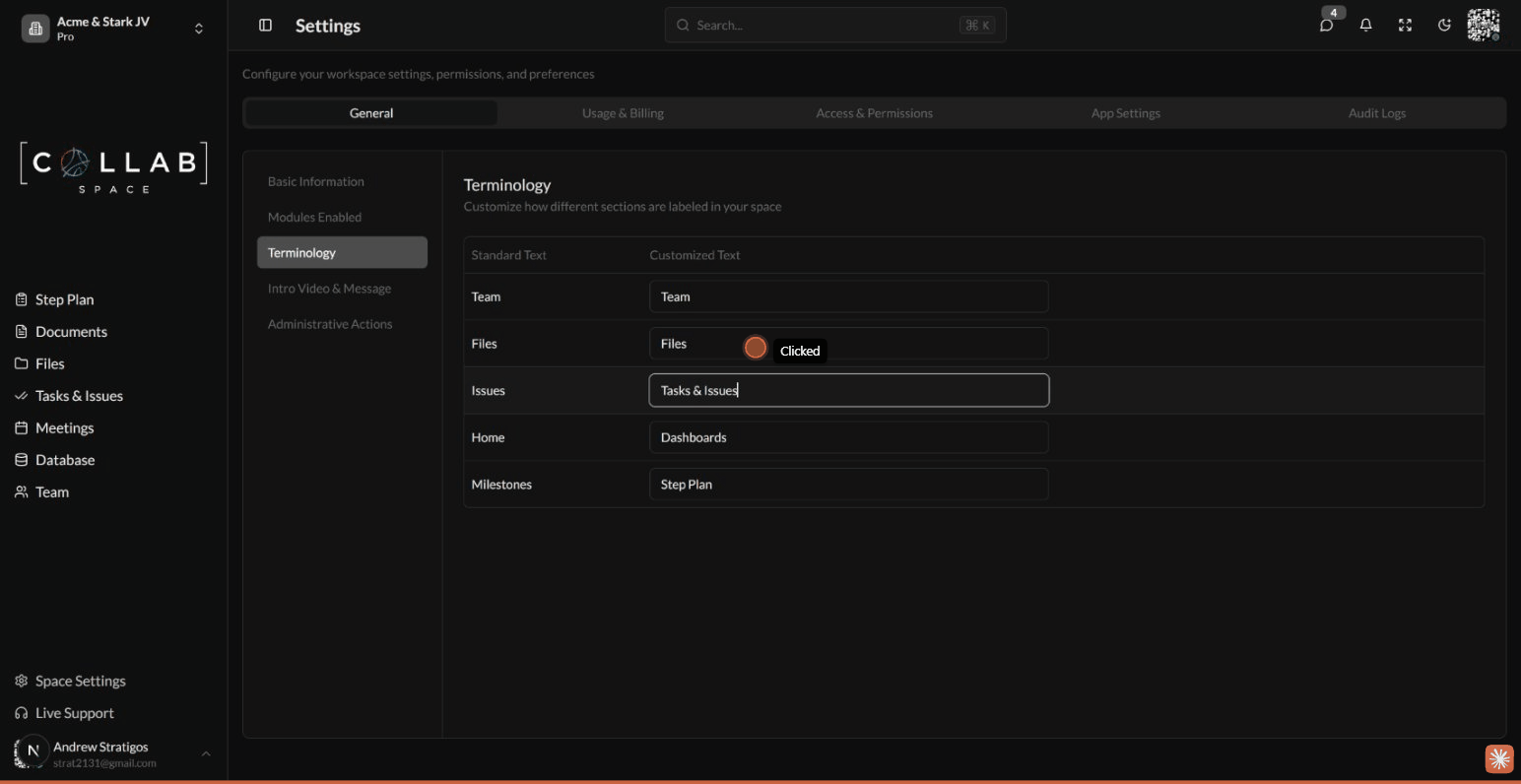
To access terminology settings, go to Settings in the sidebar, then select the General tab and click on Terminology in the sidebar.
Rename key concepts to match your organization's language:
| Default Term | Description | Example Alternatives |
|---|---|---|
| Team | Your organizational unit | Department, Group, Squad |
| Files | File storage area | Data Room, Assets, Resources |
| Issues | Work items and tasks | Tickets, Tasks, Items |
| Dashboards | Main dashboard area | Home, Overview, Hub |
| Milestones | Project milestones | Phases, Sprints, Goals |
| Documents | Document storage | Notes, Pages, Wiki |
| Meetings | Meeting management | Calls, Conferences, Events |
The new terminology appears throughout the workspace interface, including navigation menus and labels.
Theme preferences are configured at the user level through the account settings, not workspace settings. Each user can personalize their visual experience independently:
| Setting | Options | Description |
|---|---|---|
| Color Mode | Light, Dark, System | Choose your preferred color scheme |
| Accent Color | Multiple options | Highlight color for interactive elements |
| Sidebar Style | Expanded, Collapsed | Default sidebar state |
Theme preferences are user-specific and don't affect other team members. To access theme settings, click on your avatar in the sidebar and go to account preferences.
Set the default visibility for newly created records. This is configured in Settings > Access & Permissions > Default Permissions:
| Default | Description |
|---|---|
| Private | Only the creator can see new records |
| Team | The creator's team can view new records |
| Organization | The creator's organization can view new records |
| Space | All space members can view new records |
Users can always adjust permissions on individual records after creation.
Each app has its own configuration accessible from the Settings > App Settings tab:
| App | Available Settings |
|---|---|
| Tasks & Issues | Issue types, status management, custom fields |
| Files | Allowed file types and upload restrictions |