


Previous
AppearanceNext
Billing & SubscriptionManage who has access to your workspace and what they can do.
The Members & Permissions settings let you control access to your workspace through role-based permissions and default access policies. Configure who can join, what roles they receive, and how permissions are applied to new content.
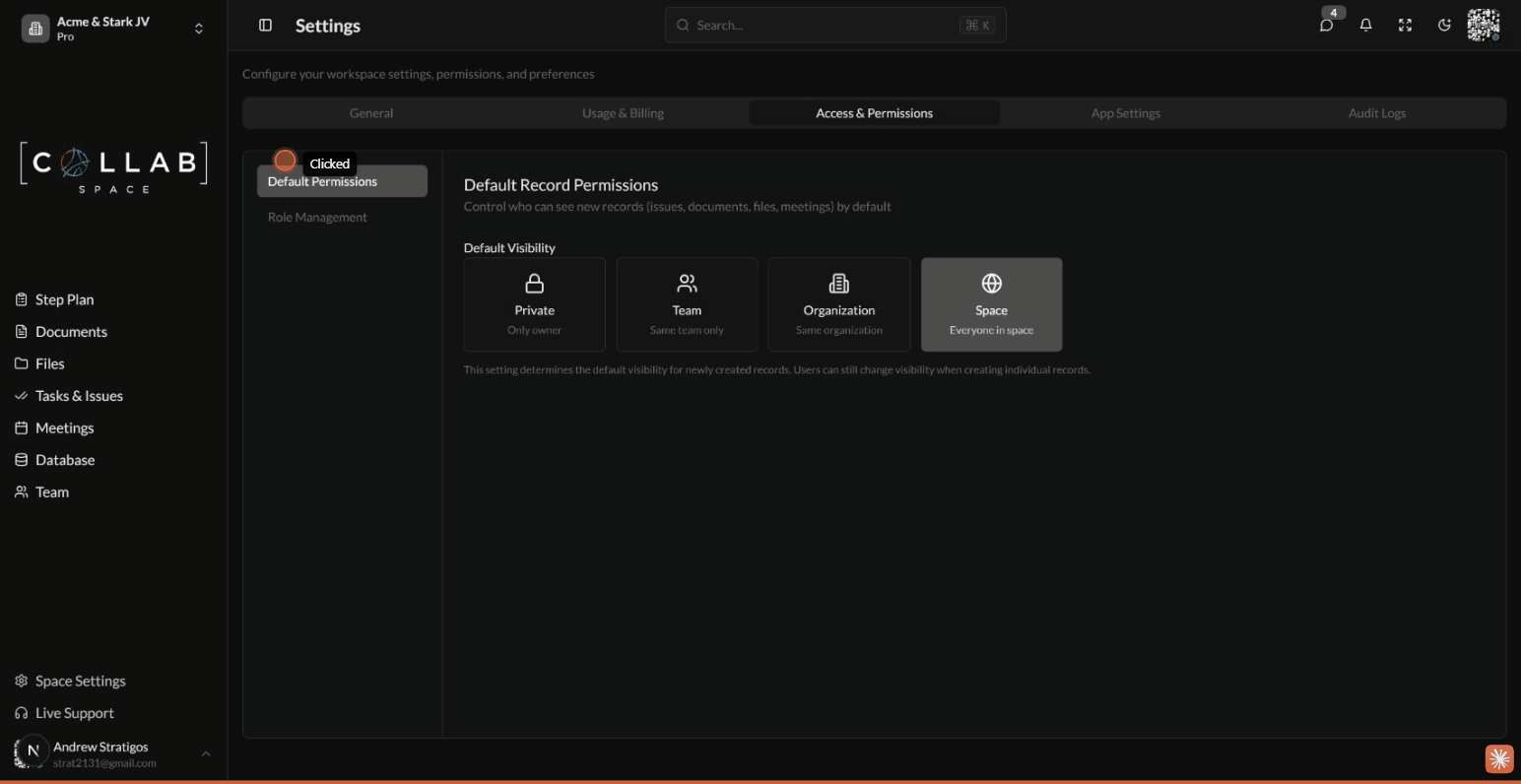
To access these settings, go to Settings in the sidebar, then select the Access & Permissions tab.
Control the default visibility for newly created records:
| Setting | Description |
|---|---|
| Private | Only the creator can access new records |
| Team | The creator's team can access new records |
| Organization | The creator's organization can access new records |
| Space | All space members can access new records |
These defaults apply when users create new issues, documents, files, and other records. Users can always adjust permissions on individual records.
Your workspace includes these default roles:
| Role | Description |
|---|---|
| Space Owner | Full ownership of all records in the space. Cannot be modified. |
| Administrator | Full access to all features. Can manage the workspace but cannot archive or delete the space. |
| Contributor | Can create and edit items, and manage teams. |
| Approver | Can view and approve items, but cannot create or edit. |
| View Only | Read-only access to all items. |
| Disabled | No access (for suspended accounts). |
The Space Owner role is locked and cannot be modified or deleted.
Permissions are organized into resource categories with specific actions:
| Category | Available Actions |
|---|---|
| Documents | Create, Read, Update, Delete, Publish, Archive, Rename, Move, Duplicate, Version, Share, Comment |
| Files | Create, Read, Update, Delete, Archive, Rename, Move, Duplicate, Version, Share, Comment |
| Issues | Create, Read, Update, Delete, Archive, Assign, Share, Comment |
| Meetings | Create, Read, Update, Delete, Archive, Share, Comment |
| Milestones | Create, Read, Update, Delete, Publish, Comment |
| Database Schema | Create, Read, Update, Delete, Archive, Share, Comment |
| Database Entry | Create, Read, Update, Delete, Archive, Comment |
| Space | Update Settings, Invite Members, Remove Members, Manage Teams, Manage Organizations, Raise Support, Archive, Delete |
Permissions follow the format resource:action (e.g., document:create, issue:update).
Create custom roles for specific needs:
Roles can be assigned at multiple levels:
| Level | Description |
|---|---|
| Space | Default role for all space members |
| Organization | Role for all members of an organization |
| Team | Role for all members of a team |
| Individual | Role override for specific members |
Lower-level assignments override higher-level ones.
Permissions flow through the hierarchy:
A user's effective permissions combine their role permissions with any record-specific access.
Check these in order:
Review: