


Previous
ShortcutsNext
Working with DatabasesBuild custom data repositories with flexible schemas and powerful field types.
The Database app lets you create custom databases to track any type of structured data your team needs. From asset inventories and supplier lists to custom CRM records and project check lists, you can design schemas with the exact fields you need and organize entries with powerful filtering and sorting.
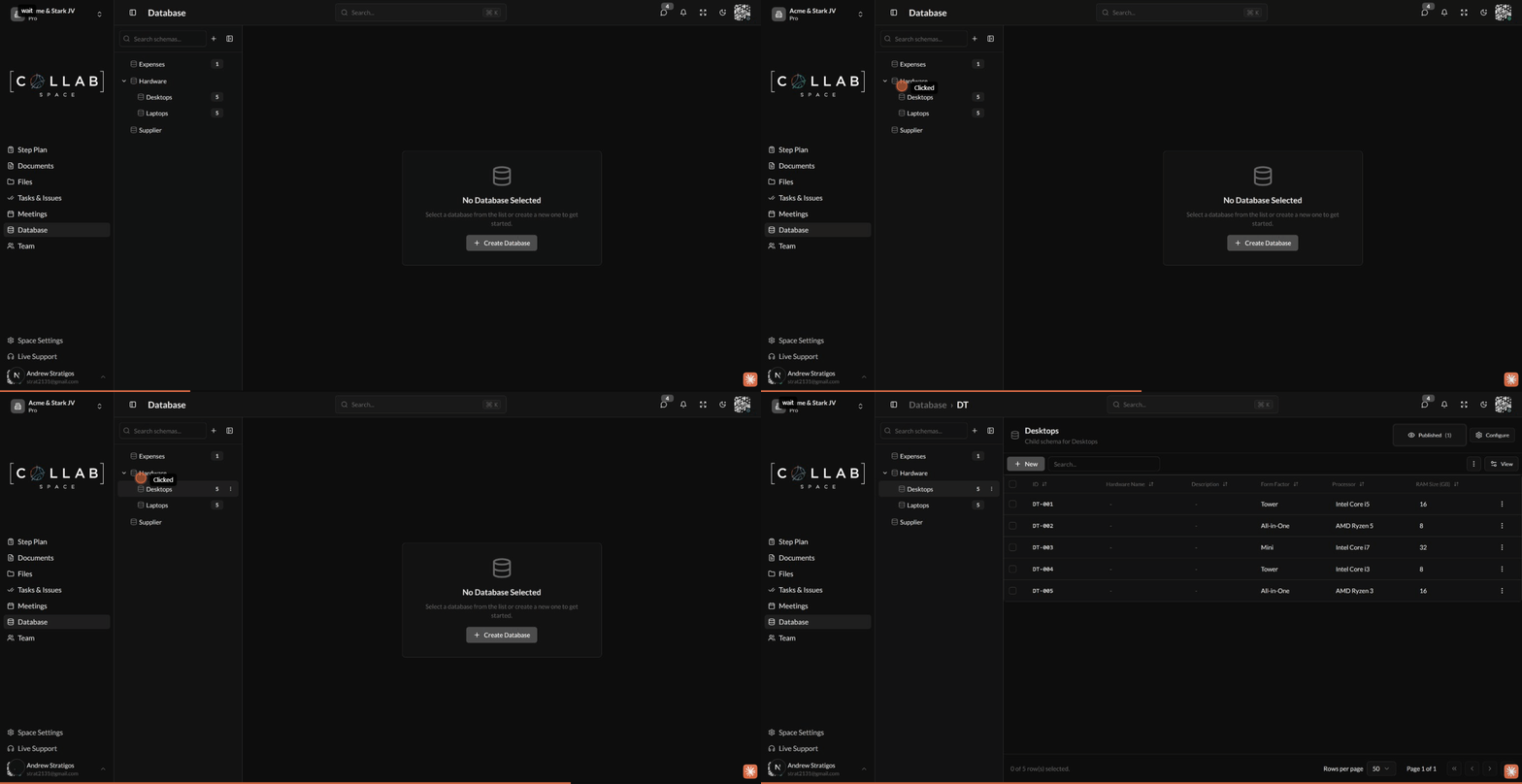
To access the Database app, navigate to Database in the sidebar or go to /apps/database in your workspace.
The Database app uses a two-panel layout:
The schema tree displays all your databases with:
| Element | Description |
|---|---|
| Database Icon | Visual indicator for each database (customizable) |
| Database Name | The display name of your database |
| Entry Count | Number of entries in each database (shown as badge) |
| Nested Databases | Child databases appear indented under parents |
You can collapse the sidebar using the panel toggle button to maximize table space.
When you select a database, the right panel shows a data table with: