


Previous
Issues ListNext
Tips for SuccessThe detail view provides full access to an issue's content, metadata, and activity history.
Click any issue ID or title to open the full detail view.
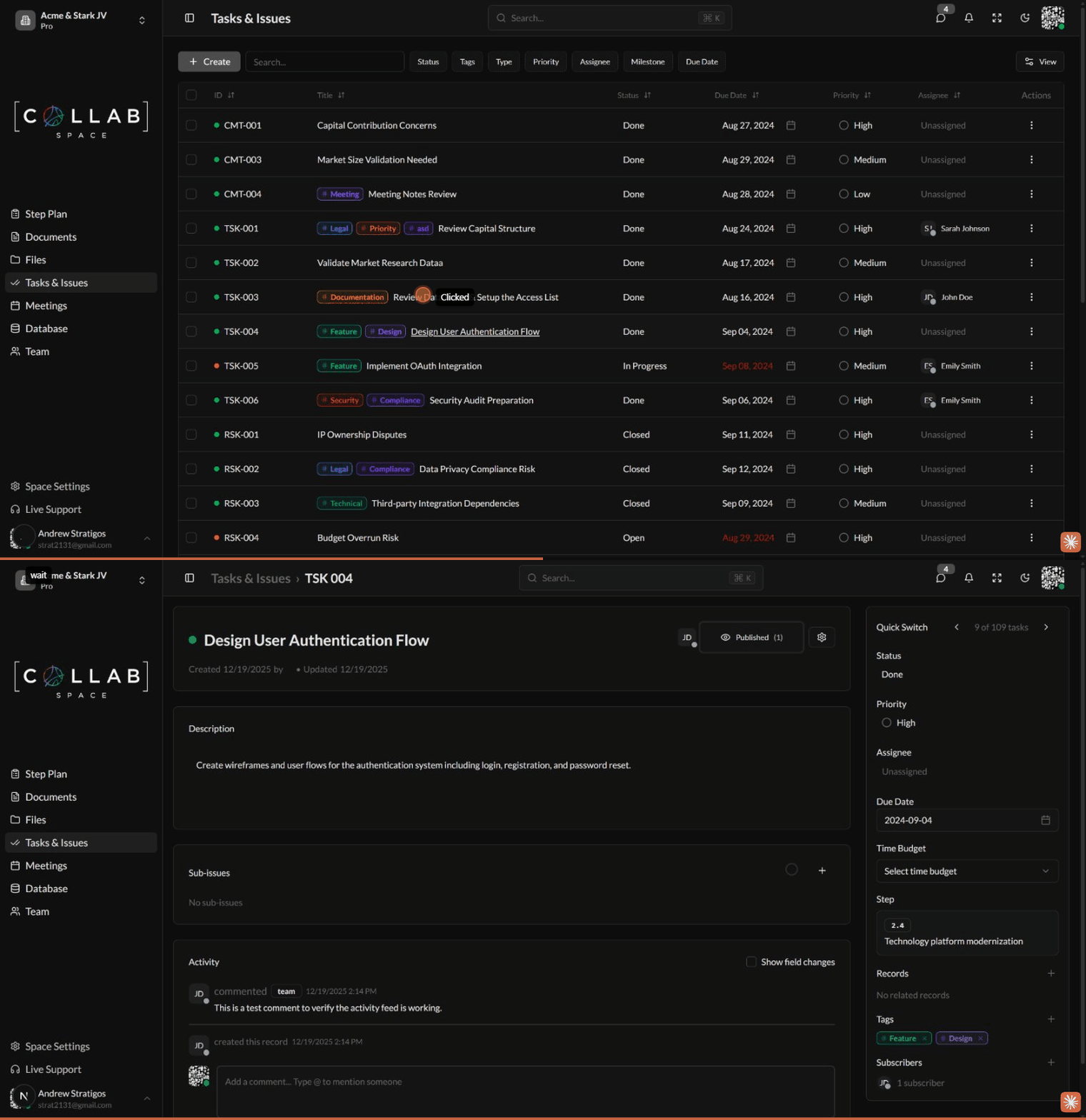
The left side of the detail view shows:
The right sidebar displays and allows editing of:
| Field | Description |
|---|---|
| Quick Switch | Navigate between issues (6 of 109 tasks) |
| Status | Current workflow status |
| Priority | Issue priority level |
| Assignee | Responsible team member |
| Due Date | Target completion date |
| Time Budget | Estimated time to complete |
| Step | Linked milestone step |
| Records | Related issues or documents |
| Tags | Categorization labels |
| Subscribers | Team members following updates |
The activity section shows a complete history of the issue:
Add comments to collaborate with your team or document decisions.
Break down complex work into manageable pieces using sub-issues.
The parent issue displays a progress indicator showing:
Use tags to categorize and filter your issues.
Click the Tags filter button to show only issues with specific tags. This is useful for viewing all issues related to a particular feature, sprint, or category.
Link issues to milestone steps for project tracking.
From the Milestones app, click Navigate to Issues on any step to see all linked issues. This helps track progress against your project plan.