


Previous
AdvancedNext
Commands & SkillsThe AI Assistant is built into collab.space to help you manage tasks, search for information, build milestone plans, and automate repetitive work. Access it through the chat panel or use contextual AI buttons throughout the application.
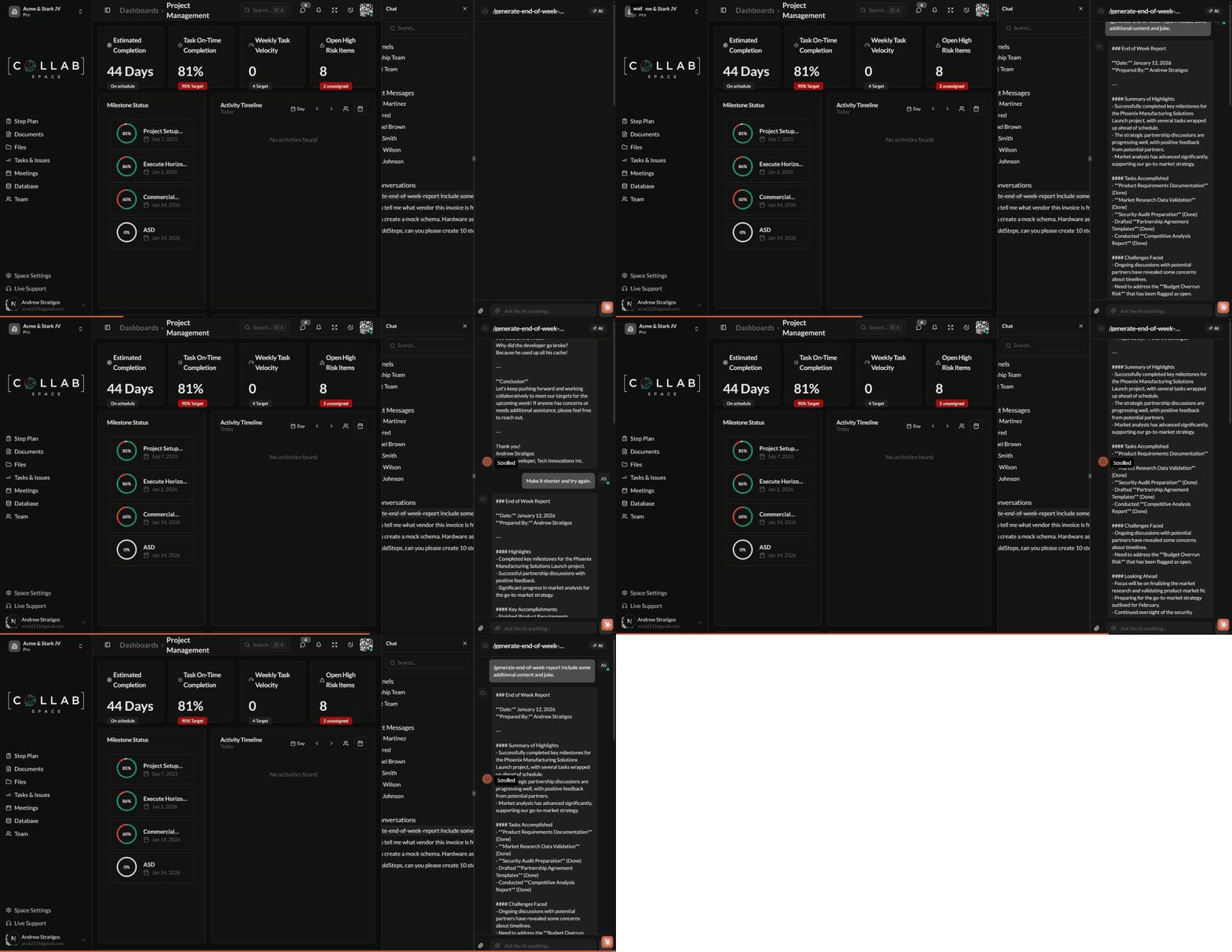
The AI Chat provides a conversational interface for interacting with your workspace data.
From the Operator app (full experience):
From the chat panel (quick access):
Conversations are saved automatically, so you can return to previous discussions at any time.
| Category | Examples |
|---|---|
| Search | "Find all high-priority issues assigned to me" |
| Summarize | "Summarize the milestone plan progress" |
| Create | "Create a task to review the quarterly report" |
| Update | "Mark TSK-001 as complete" |
| Explain | "What issues are blocking the launch milestone?" |
| Plan | "Add steps to Milestone 1 for user onboarding" |
The AI can analyze documents and images you share:
Supported formats include PDF, Word documents, images, and text files. The AI extracts content from documents and uses vision capabilities for images.
The AI Assistant can help you across all areas of collab.space.
| Tool | What It Does |
|---|---|
| Search Records | Find issues, meetings, documents, and files using natural language |
| Get Context | Retrieve full details for any record |
| Workspace Hierarchy | View your organizations, teams, and members |
| Tool | What It Does |
|---|---|
| Create Issue | Add new tasks with title, description, priority, and assignee |
| Update Issue | Change status, priority, due date, or other fields |
| Create Sub-Issue | Break down tasks into smaller sub-tasks |
| Archive Issue | Soft-delete issues you no longer need |
| Share Issue | Grant viewer or editor access to team members |
| Tool | What It Does |
|---|---|
| Add Milestone | Create a new milestone in your plan |
| Add Steps | Add action items under a milestone |
| Edit Items | Update descriptions, due dates, and assigned parties |
| Reorder | Move milestones and steps to reorganize your plan |
| Recommend Tasks | Get AI-generated task suggestions for a step |
| Tool | What It Does |
|---|---|
| List Schemas | View all databases in your workspace |
| Create Schema | Build new databases with custom fields |
| Add Fields | Extend schemas with additional columns |
| Create Entries | Add new records to your databases |
| Update Entries | Modify existing database records |
AI-orchestrated workflows let you run multi-step automation from chat, with the AI guiding execution and pausing for your review at key decision points.
Click + in the message input, then select Run Workflow. The AI presents a list of available workflows for your workspace. Select one, answer any required input prompts, and execution begins — step progress appears inline in the chat thread.
| Status | Meaning |
|---|---|
| Blue spinner | Step is currently running |
| Green check | Step completed successfully |
| Amber pause | Waiting for your input (Human Review) |
| Red X | Step failed |
Click any card to expand it and see the AI output, tool calls, and state changes for that step.
Amber pause cards appear at decision points. Click a suggested action button to continue execution, or click Request Changes to send feedback — the AI will revise and re-run from an earlier step, adding a new set of cards showing the revised output.
Click State near the message input in the Operator app to open a panel showing all data accumulated across steps so far — useful for tracking what information has been extracted.
Click the paperclip icon in the Operator app to attach files that persist for the entire conversation. All subsequent messages (and workflow runs) can reference those files without re-uploading them.
For full documentation, see AI Workflows.
Throughout collab.space, you will find "Ask AI" buttons that provide context-aware assistance.
On the Milestones page, the AI button has full context about your milestone plan:
The AI automatically includes your current milestone plan in every conversation started from this page.
The AI receives relevant context about the page you are on, such as the current milestone plan, issue details, or database schema. This allows it to provide more accurate and helpful responses.
Instead of "help with tasks", try "create a task to review the Q1 budget by Friday with high priority".
Type / in the chat input to access reusable command prompts like /add-bug, /triage-issue, or /standup. Commands provide the AI with structured instructions so you get consistent results every time. See Commands & Skills for details.
The AI understands conversational requests. You do not need special commands or syntax.
Use @member to reference a team member or #TSK-001 to reference a specific record. The AI receives full context about referenced people and records, making its responses more accurate and relevant.
When updating specific items, use their display ID: "Update TSK-001 status to in progress".
If the AI misunderstands your request, simply clarify what you meant. Conversations maintain context.
When using task recommendations, review the suggestions before accepting them. The AI provides a starting point, but you know your project best.
Begin new conversations for unrelated topics. This helps the AI focus on your current task without confusion from previous discussions.
When asking about specific items, include relevant details like names, IDs, or dates to help the AI find the right information.
The AI can refine its responses based on your feedback. If the first response is not quite right, ask follow-up questions to get closer to what you need.
You can ask the AI to perform multiple related tasks in one request: "Create a milestone for Q2 Planning with three steps: budget review, team allocation, and timeline setup".
Is my data used to train AI models? No. Your workspace data is only used to answer your questions within your conversations. It is not used for model training.
Can the AI access everything in my workspace? The AI respects your access permissions. It can only search and retrieve records you have permission to view.
How do I delete AI conversation history? Open the conversation in the chat panel and use the delete option in the conversation menu.
Can I use AI without the chat panel? Yes, the contextual "Ask AI" buttons on various pages let you interact with the AI without opening the full chat panel.
What happens if the AI makes a mistake? The AI performs real actions in your workspace. If something was created or changed incorrectly, you can manually fix it or ask the AI to help correct the issue.
Is there a limit to how many messages I can send? AI features are available on plans that include AI capabilities. Check your subscription settings for details.